Scheduled Reports
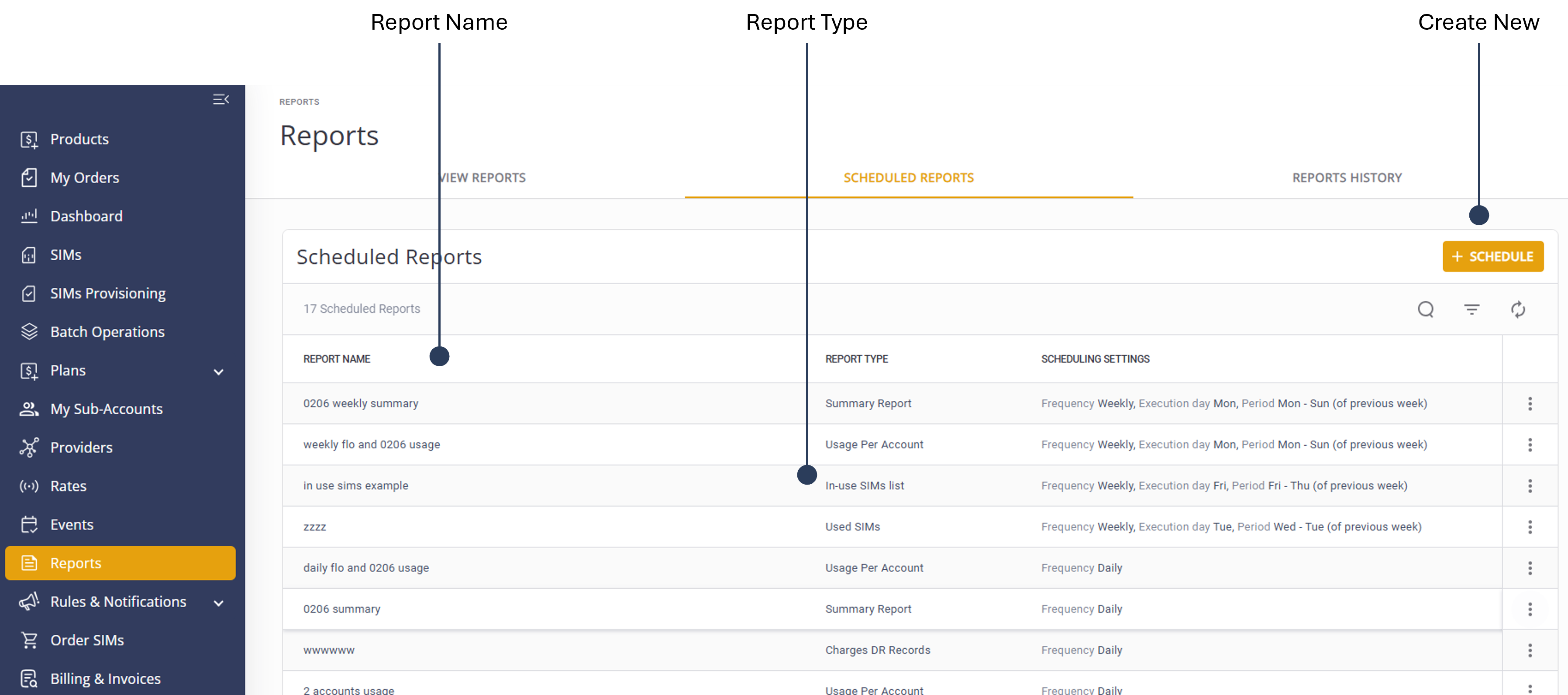
Account users can create automated reports to run periodically on the system. Each scheduled report requires a Report Name, a Report Type, and Scheduling setting.
A screen capture of the View Reports homepage is shown here.
Scheduling Frequency
A definition of the scheduling frequency concepts is provided in this table.
| Report Type | Details |
|---|---|
| Daily Reports | Generated every day at a specified time. These reports provide a daily overview of data and ensure up-to-date information is available on a daily basis. |
| Weekly Reports |
These reports summarize data on a weekly basis, offering insights over a 7-day period.
|
| Monthly Reports |
These reports aggregate data on a monthly basis, providing a comprehensive view over a 30-day period.
|
Create Scheduled Report
To create a scheduled report, do these steps:
- Select Reports from the sidebar Menu.
- Select the Scheduled Reports tab and click +Schedule.
- Type a Report Name.
- Select a Report Type.
- Enter the required information for the selected Report Type.
- Specify the Scheduling Settings:
-
Daily: Report is generated for the selected day.
-
Weekly: Select a Start Day to specify the report period and an Execution Day on which the report is generated.
-
Monthly: Select a Start date to specify the report period and an Execution Date on which the report is generated.
- Set the Frequency and Execution Date for weekly and Monthly periods.
- Click Apply to set Scheduling Settings
- Click Create to generate a scheduled report. The report is added to the Scheduled Reports table.
- Click Reports Historyto view all generated automated reports.